Assignments & Notes
Create detailed practice assignments for each student, attach sheet music or audio, and keep lesson notes organized. Parents see published assignments instantly in the portal.
Creating assignments
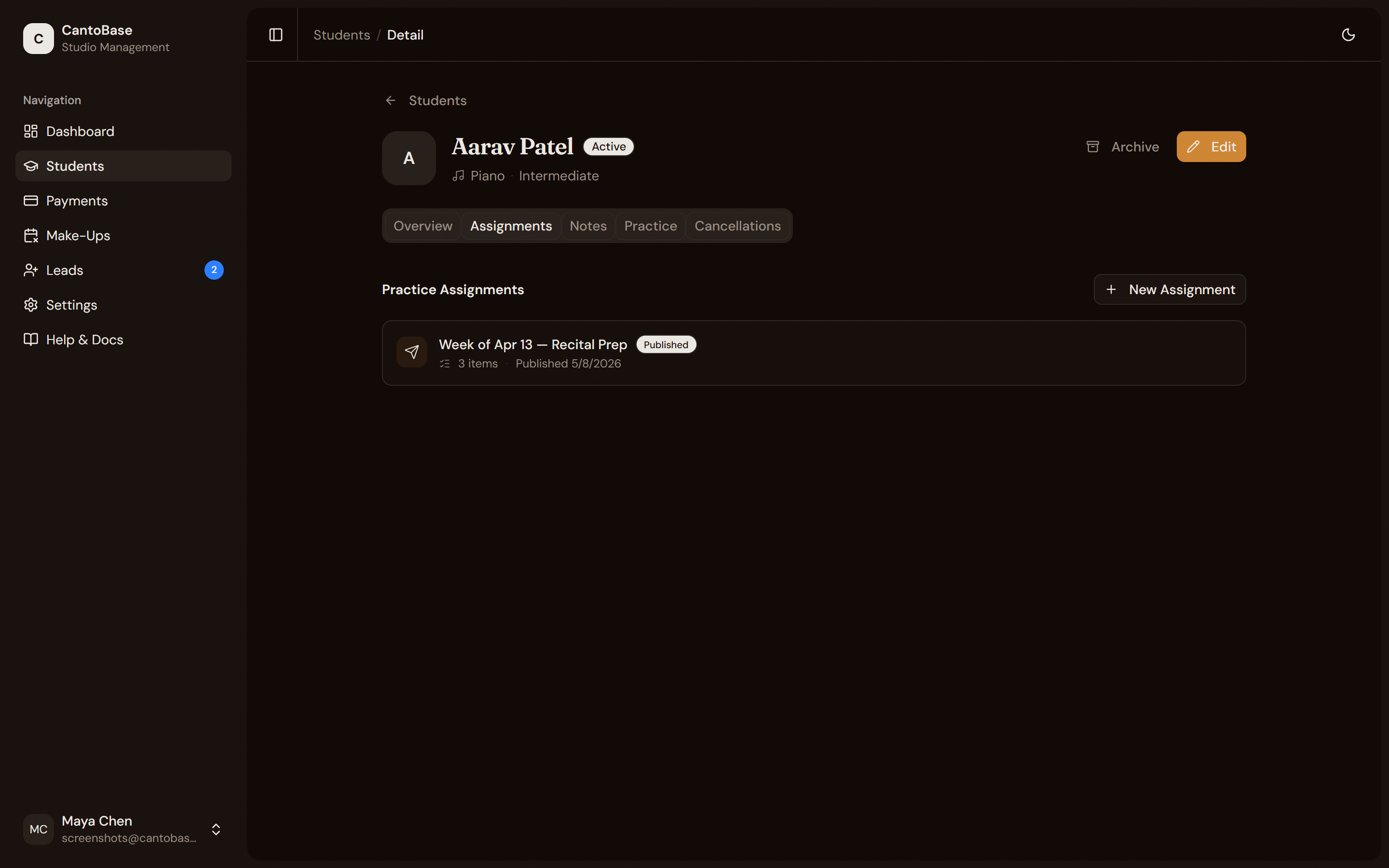
From a student's Assignments tab, click + New Assignment to start building their weekly practice plan.
Pick the week
Add practice items
Save as draft or publish
Practice items
Each practice item is a single thing you want the student to work on. You can add as many as you like to an assignment. Here's what each field does:
Title
The name of the piece, scale, or exercise (e.g. "Minuet in G" or "C Major Scale").
Type
Choose from piece, scale, exercise, warm-up, or other. Helps parents understand the category at a glance.
Composer
Optional. Add the composer name if relevant.
Tempo
Set a target BPM so the student knows the goal speed.
Focus areas
Specific things to pay attention to — dynamics, hand position, rhythm accuracy, etc.
Notes
Free-text instructions. Use this for anything that doesn't fit the other fields.
Attachments
Upload PDF sheet music, audio demos, or video clips. Parents can view and download these directly from the portal.
Publishing
Assignments start as drafts, visible only to you. When you're ready to share, click Publish.
Publishing does two things:
The assignment becomes visible in the Parent Portal, replacing the previous week's assignment as the current one.
An email notification and push notification are sent to the parent, letting them know a new assignment is ready.
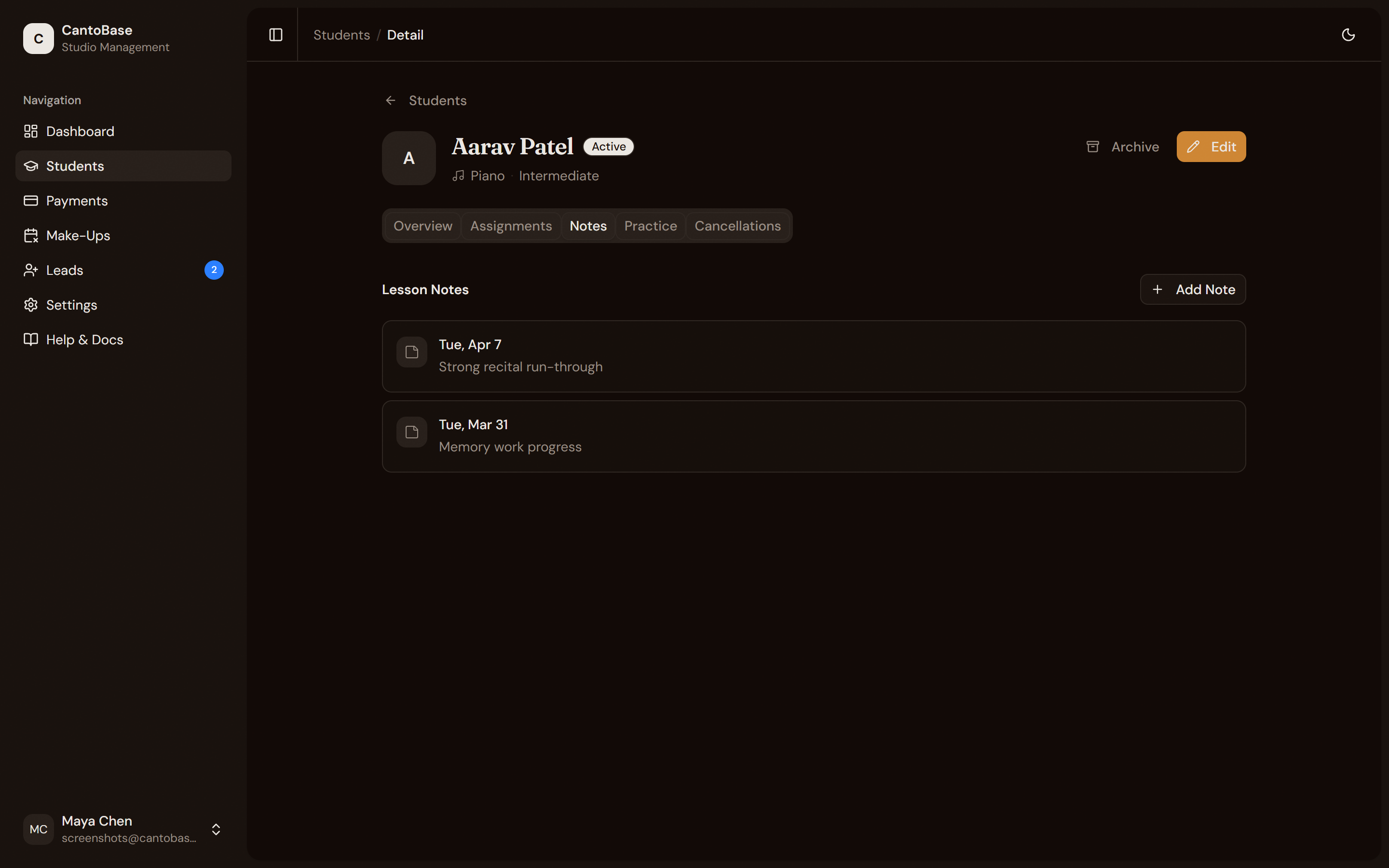
Lesson notes
After each lesson, jot down what you covered, what went well, and what to focus on next. Lesson notes live on the student's Notes tab.