Manage your profile, update your password, control your subscription, connect Stripe for
student payments, and customize your preferences.
cantobase.com
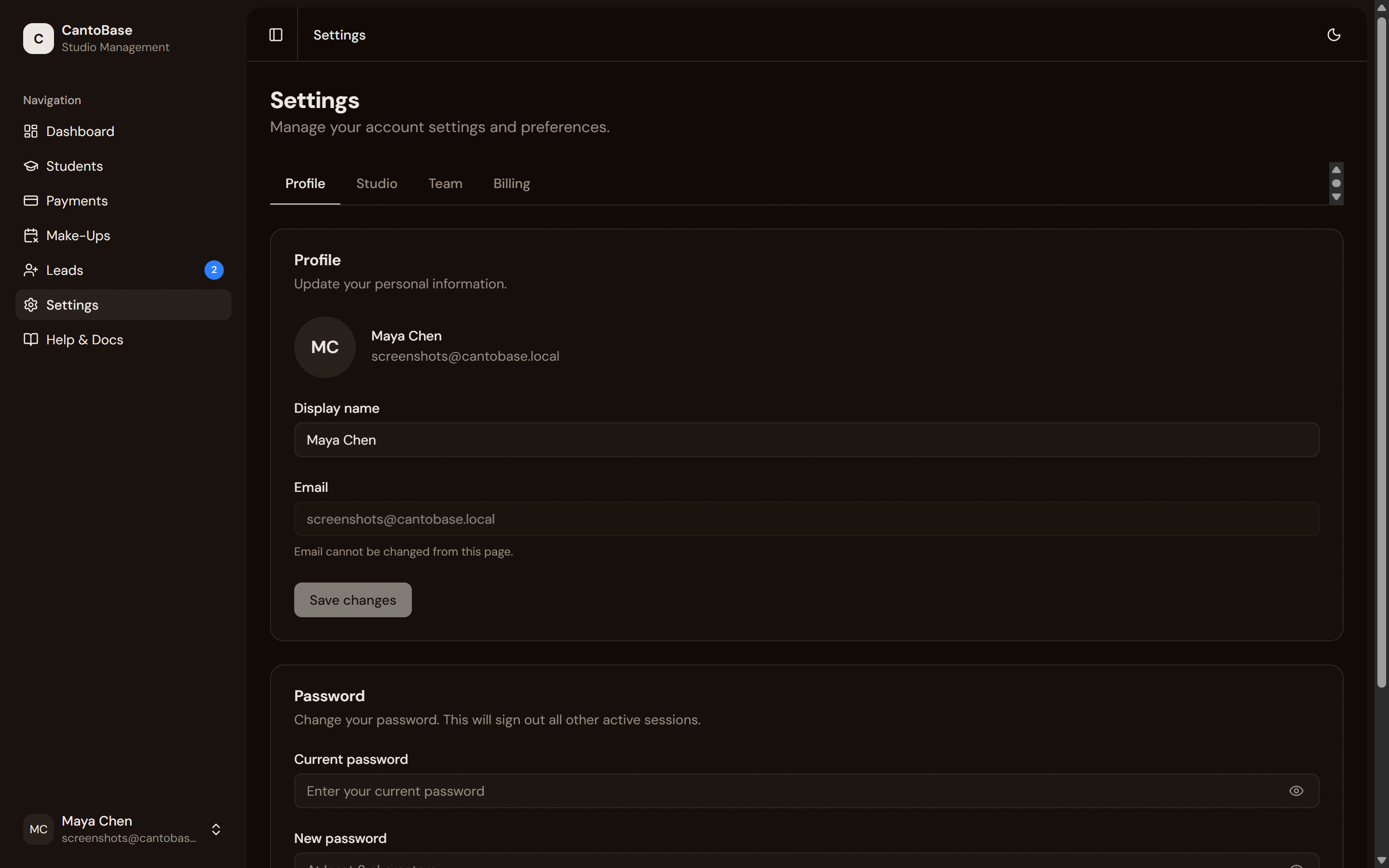
Manage your profile, display name, and password from Settings.
Profile
The Profile tab lets you update the basics — your display name, email address,
and avatar.
Open Settings
Click the gear icon in the sidebar or navigate to Settings.
Edit your display name
This is the name students and parents see. Change it anytime.
Update your email
Your email is used for login and notifications. If you change it, you'll need to verify the
new address.
Upload an avatar
Add a photo to personalize your profile. It appears in the sidebar and on any
parent-facing communications.
Password
If you signed up with email and password (rather than Google sign-in), you can change your
password from the Settings page.
Enter your current password
This confirms your identity before allowing the change.
Enter a new password
Choose a strong password. CantoBase requires at least 8 characters.
Confirm and save
Re-enter the new password and click Update Password. You'll stay logged in
with the new password.
Note
If you signed up with Google, you don't have a CantoBase password to change. Your login is
managed through your Google account.
Billing
The Billing tab shows your current CantoBase subscription plan, usage, and
upgrade options.
cantobase.com
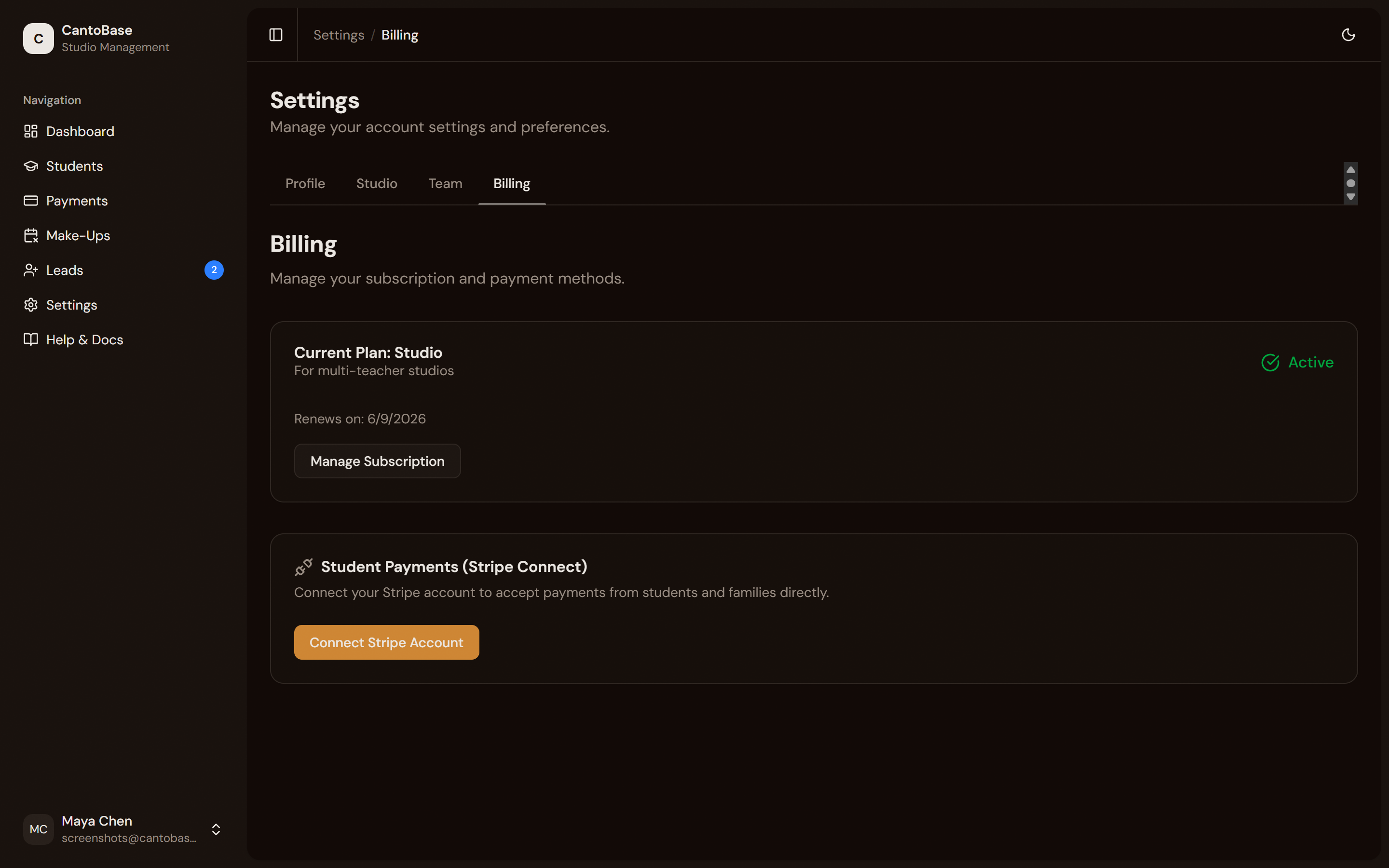
View your plan and manage billing from the Billing tab.
Current plan
See which plan you're on (Starter or Studio), your billing cycle, and when the next payment
is due.
Upgrade options
Compare plans and upgrade with one click. Upgrades are prorated — you only pay the
difference for the rest of your billing period.
Stripe Customer Portal
Click Manage Billing to open the Stripe Customer Portal. From there you can
view invoices, update your payment method, or cancel your subscription.
Tip
Your subscription is separate from student payments. The billing tab manages what you pay for CantoBase, not what your students pay you.
Team
CantoBase Studio lets you invite other teachers at your studio. Each teacher gets their own
login and sees only the students assigned to them.
Invite a teacher
Go to Settings › Team and click Invite Teacher. Enter their email and pick a role.
They accept via email
They'll get an invitation email. Clicking Accept creates their account and
adds them to your studio.
Assign students
From the Students page,
use Reassign to… to move students to the new teacher, or set a teacher on each
new student you add.
You're charged per seat
Each additional teacher adds $5/mo (or $48/yr), prorated
when you invite and when you remove them. See Billing for the itemized breakdown.
Note
Only owners and admins can invite or remove teachers. Regular teachers see only their own
students.
CantoBase also supports a dark/light mode toggle. Click the theme switcher in
the sidebar footer to switch between light mode, dark mode, or system default. Your preference
is saved automatically.