Track manual payments, view your revenue at a glance, and optionally connect Stripe to
auto-charge students monthly. CantoBase handles the bookkeeping so you can focus on teaching.
Recording payments
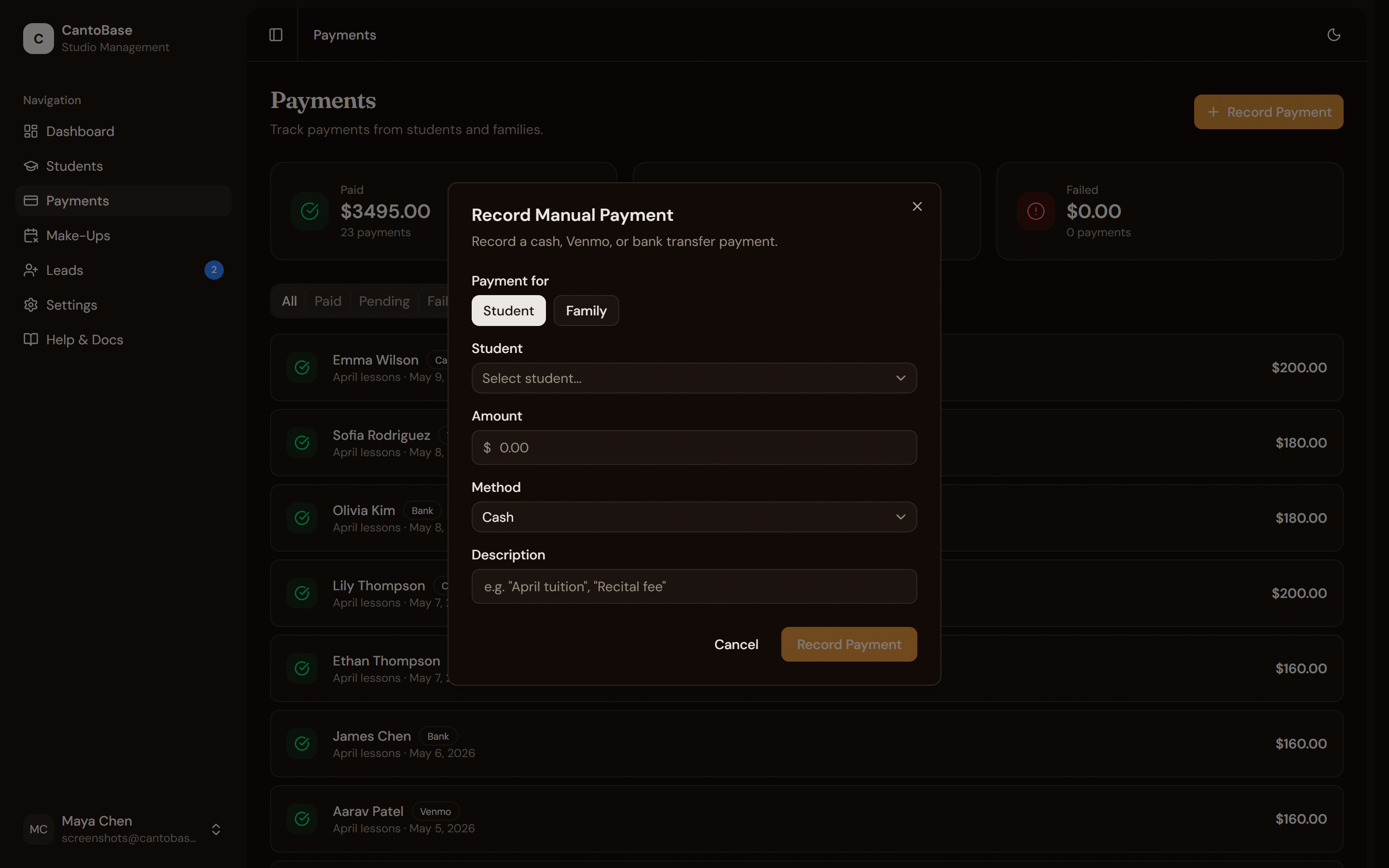
Whether you collect cash, Venmo, or bank transfers, you can log every payment in CantoBase to
keep a complete record.
The payment form opens with smart defaults to save you time.
Select student or family
Choose an individual student or an entire family (for households that pay a single invoice).
Confirm the amount
The amount auto-fills based on the student's monthly rate. Adjust it if needed — for partial
payments, extra lessons, or family totals.
Choose payment method
Select Cash, Venmo, or Bank Transfer.
Review the description
The description auto-fills as "[Month] lessons" (e.g. "April lessons"). Edit
it if you want to add specifics.
Save
Click Save and the payment is recorded. It immediately shows up in your
dashboard revenue and payment history.
cantobase.com
Record a payment in seconds with auto-filled amounts and descriptions.
Tip
Recording payments takes just a few seconds thanks to auto-filled amounts and descriptions.
Get in the habit of logging them as they come in.
cantobase.com
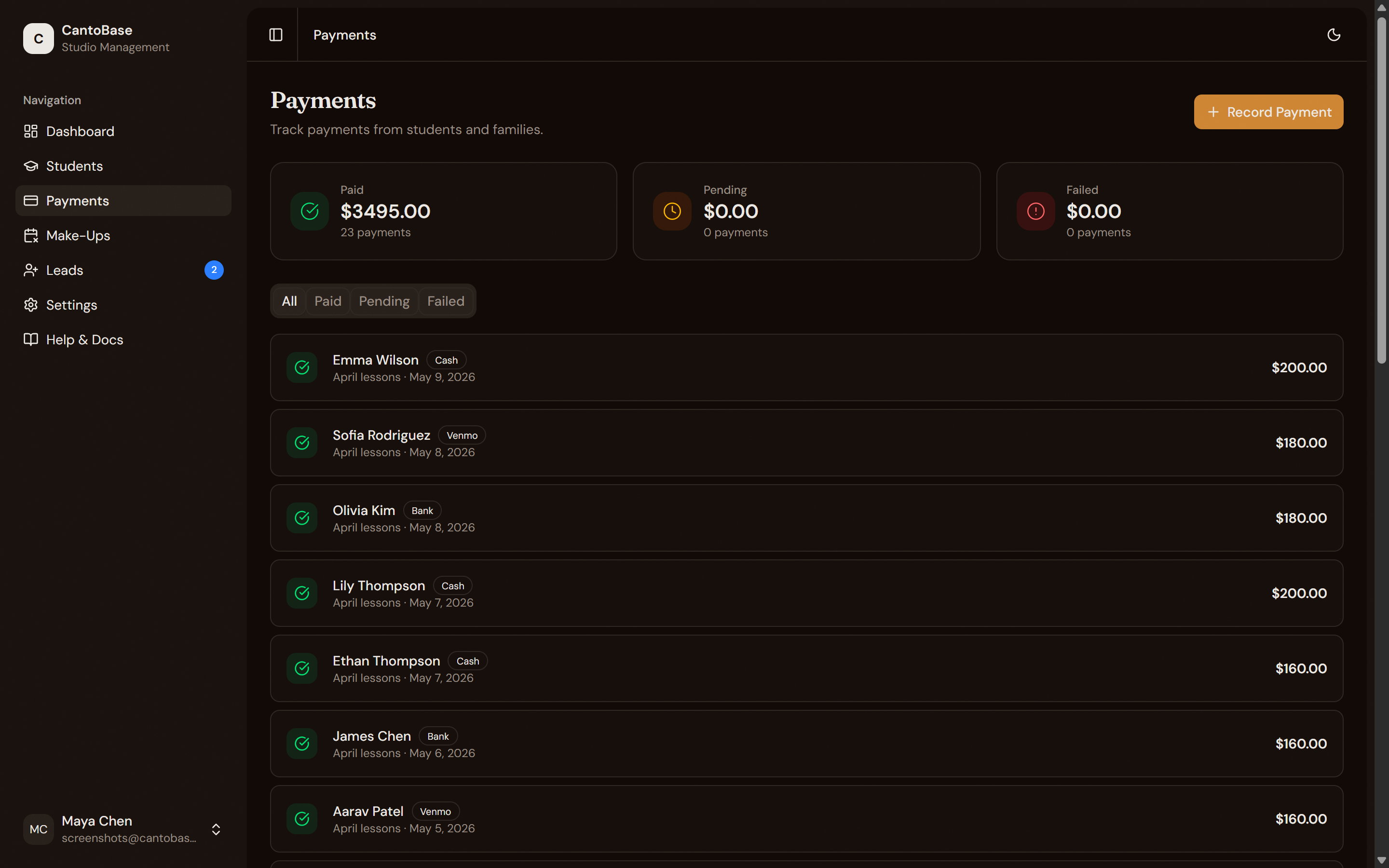
The payment dashboard shows revenue summary and all payment history.
Payment dashboard
The top of the Payments page shows three summary cards:
Paid
Total payments received this month across all methods (cash, Venmo, Zelle, bank transfer).
Pending
Students who haven't paid yet this month, based on their monthly rate.
Below the summary, filter tabs let you view All, Paid, or Pending payments. Each entry shows the student or family name, amount, method,
date, and status.
Your subscription
CantoBase itself runs on a simple subscription. This is separate from student payments — it's
what you pay to use CantoBase as your studio management tool. See pricing for current plans.
cantobase.com
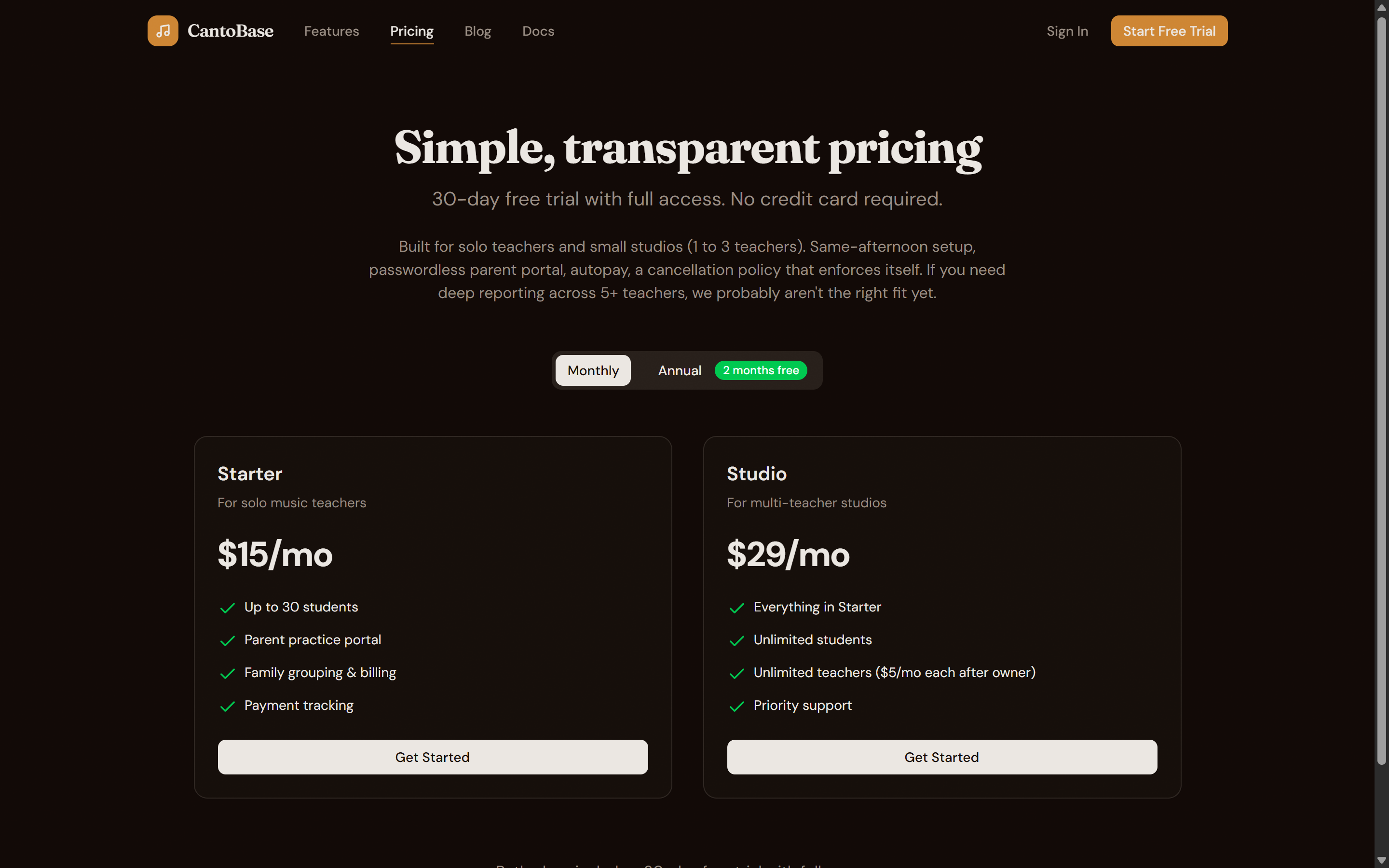
Simple pricing with Starter and Studio plans.
Starter — $15/month ($150/yr, 2 months free)
For teachers just getting started. Up to 30 students. Includes core features with student
and assignment management.
Studio — $29/month ($290/yr, 2 months free)
For growing studios. Unlimited students, unlimited teachers, and advanced features like
lead management and make-up slot booking. Additional teachers beyond the
owner add +$5/mo per seat ($48/yr), prorated when you invite or remove
them — see Team for details.
Pay yearly to get 2 months free on either plan. Every new account starts with
a 30-day free trial with full access to all features — no credit card required.
Tip
You can start on the Starter plan and upgrade to Studio whenever you need the extra features.
Upgrades are prorated so you only pay the difference.
Upgrading your plan
When you change plans mid-billing-cycle, CantoBase uses prorated billing,
which is the industry standard. Here's exactly what happens so there are no surprises on your
statement.
We calculate unused time on your current plan
If you're halfway through a 30-day Starter cycle ($15/mo), you have ~15 days of unused value —
roughly $7.50 in credit.
We calculate the cost of the new plan for the rest of the cycle
Switching to Studio ($29/mo) for those remaining 15 days costs ~$14.50.
Your card is charged the net difference immediately
In that example: $14.50 new plan minus $7.50 credit = $7 charged now. A
separate line on your next invoice shows the prorated credit and charge so everything adds up.
Your next normal invoice is at the new plan's full price
The next billing cycle charges $29 as normal. Your renewal date stays the same.
Note
Downgrades work the same way in reverse: you get a prorated credit for unused days of your
current plan, applied to your next invoice at the lower plan's rate.
See the breakdown in Stripe
Open Settings → Billing and click Manage Subscription to open Stripe's customer portal. Under Invoices you'll see every proration line item clearly labeled.