The parent portal gives families a simple, login-free way to view assignments, read lesson
notes, log practice, and cancel upcoming lessons. Just share a link — no app download or
account creation needed.
How it works
Each student gets a unique portal link. When a parent opens the link in any browser — phone,
tablet, or computer — they see everything relevant to their child. No login, no password, no
friction.
Find the portal link
Go to the student's detail page and open the Overview tab. The portal link is
displayed in the Parent Portal section.
Share the link
Copy the link and send it to the parent via text, email, or however you normally communicate.
They can bookmark it for easy access.
Parents use the portal
From that link, parents can see assignments, lesson notes, practice history, and cancel
upcoming lessons — all without creating an account.
Note
Portal links are unique and unguessable. Only someone with the link can access that student's
information.
cantobase.com
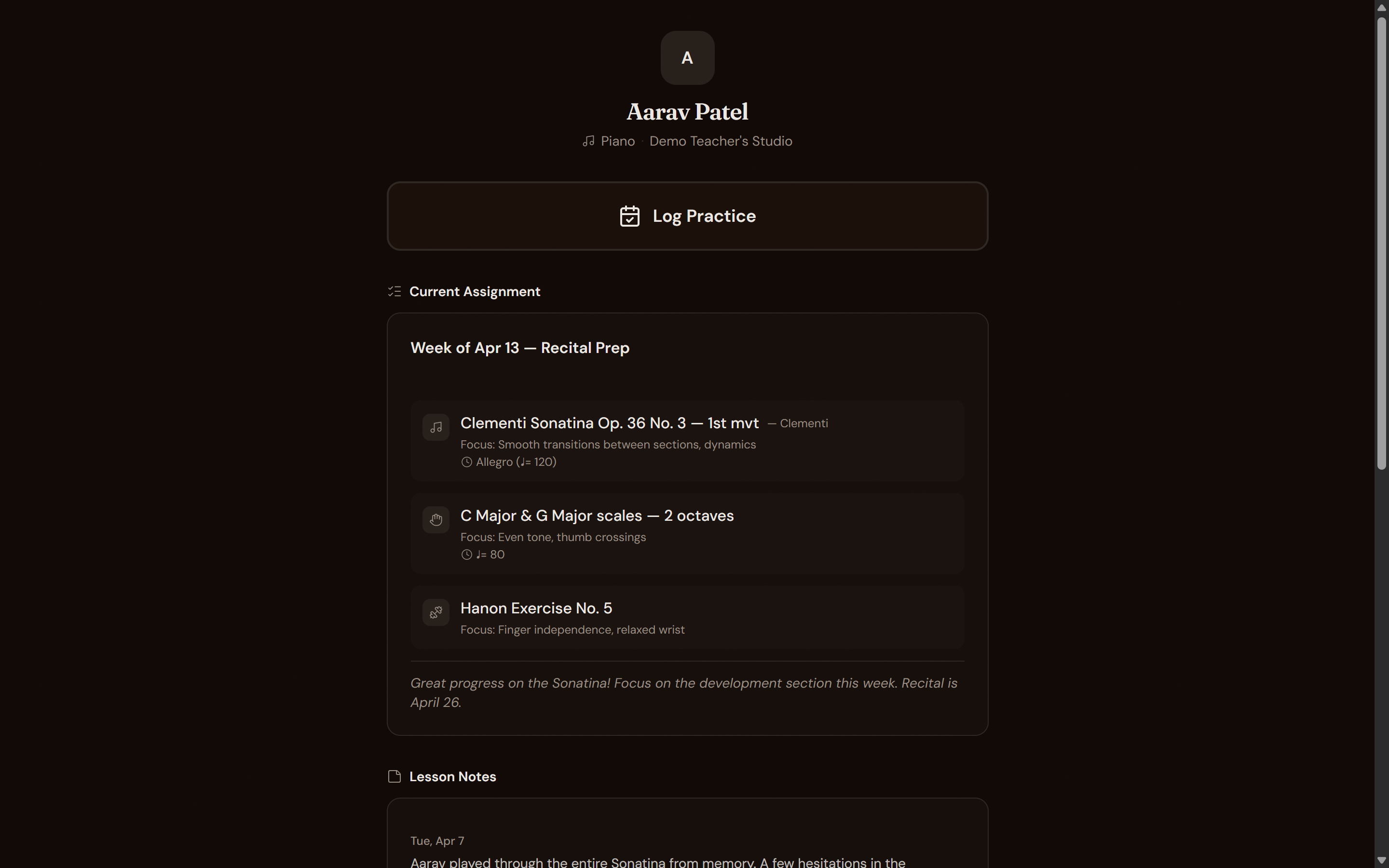
The portal is clean and focused — parents see exactly what they need.
What parents see
The portal is designed to be clean and focused. Parents see exactly what they need and nothing
more:
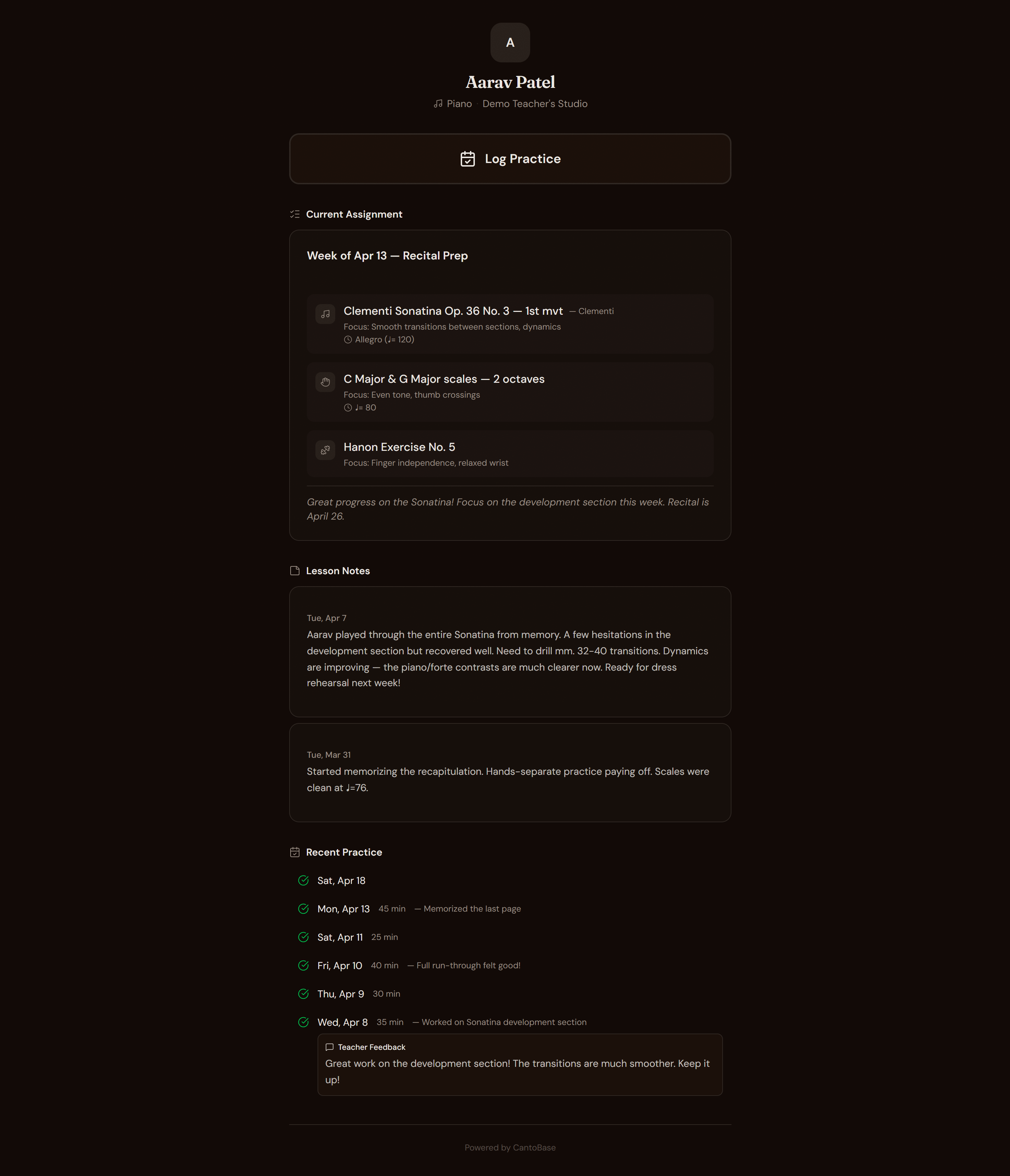
Current assignment
The most recently published assignment with all practice items, focus areas, notes, and
downloadable attachments.
Lesson notes
Notes you've marked as parent-visible, listed in reverse chronological order. A great way to
keep parents in the loop on progress.
Practice history
A log of all practice sessions submitted through the portal, including duration, items
practiced, and any comments.
Cancel a lesson
If you've enabled cancellations, parents can cancel upcoming lessons directly from the
portal, subject to your cancellation policy.
cantobase.com
The complete portal includes assignments, teacher notes, and practice logs.
Logging practice
Parents can log practice sessions directly from the portal. This gives you visibility into
what's actually happening between lessons.
Open the portal
The parent opens their saved portal link on any device.
Tap 'Log Practice'
They see the current assignment's practice items and select which ones were practiced.
Enter duration and notes
They enter how long the session lasted and optionally add a comment — like "struggled with the
bridge section" or "played it perfectly three times."
Submit
The practice log appears immediately on the student's Practice tab in your
dashboard. You can also leave feedback that the parent will see next time they open the portal.
Tip
Encourage parents to log practice regularly. Even quick 5-minute entries help you see patterns
and adjust assignments accordingly.
Managing links
You have full control over portal links. If a link is shared with someone it shouldn't be, or
you simply want a fresh start, you can revoke and regenerate it.
Revoke a link
On the student's Overview tab, click Revoke Link. The old link immediately
stops working — anyone who tries it will see an error page.
Generate a new link
Click Generate New Link to create a fresh portal URL. Share the new link with
the parent.
Warning
Revoking a link is instant and permanent. The old link can never be reactivated. Make sure you
share the new link with the parent right away.