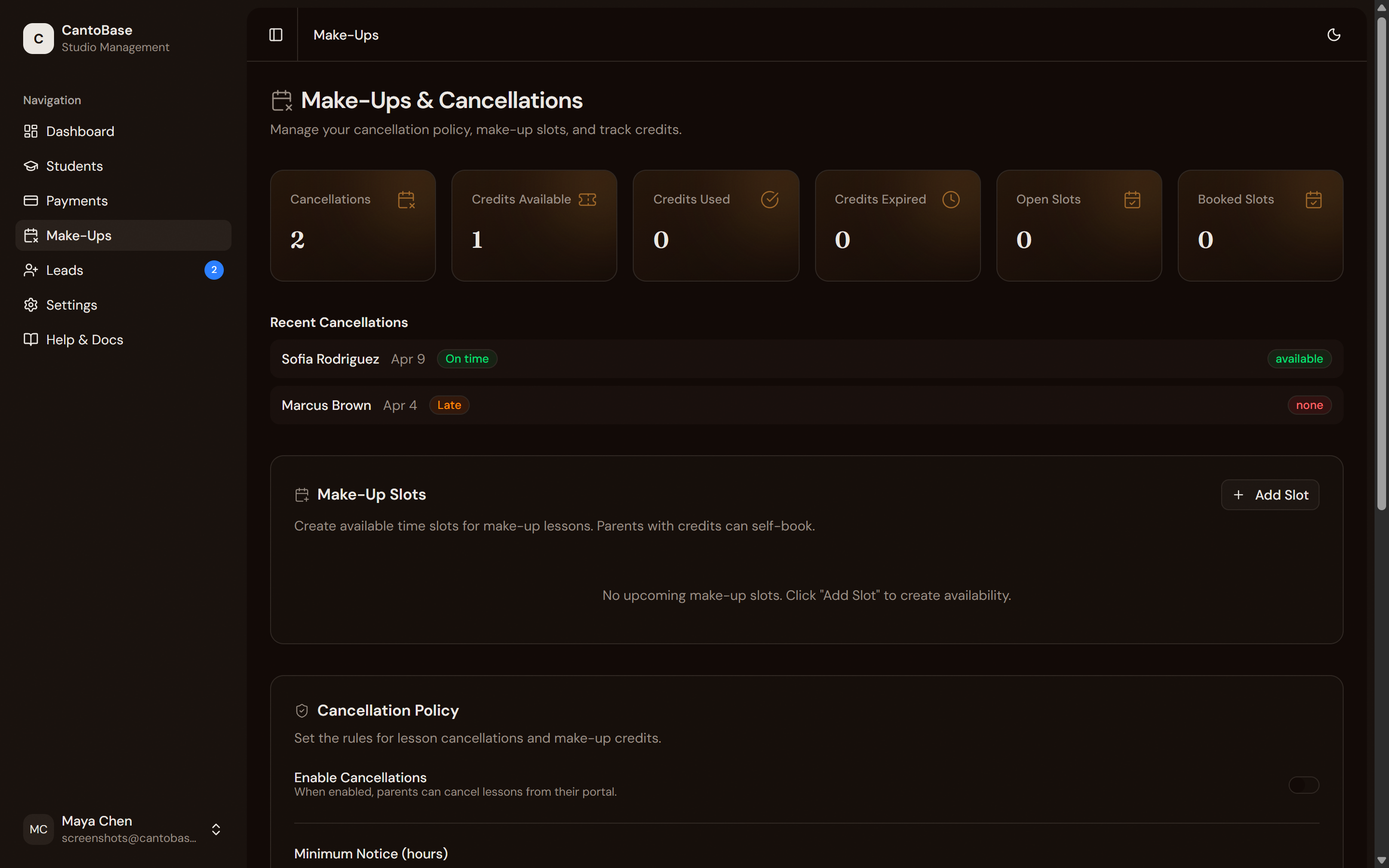
Set your cancellation policy, let parents cancel through the portal, track make-up credits,
and offer self-serve booking for make-up slots. Everything stays fair and transparent.
cantobase.com
Track cancellations, credits, and make-up slots all in one place.
Cancellation policy
Before parents can cancel lessons, you need to configure your cancellation policy. Head to Settings or the Make-Ups page to set it up.
Enable or disable cancellations
Toggle cancellations on or off. When off, parents won't see the cancel option in the portal.
Set minimum notice hours
Choose how many hours in advance a parent must cancel — for example, 24 or 48 hours. Cancellations
submitted after the deadline are treated as late.
Choose late cancellation handling
Decide what happens when a parent cancels late. Options include forfeiting the lesson (no
credit) or still granting a make-up credit.
Set maximum make-ups per period
Limit how many make-up credits a student can accumulate per month or semester. This prevents
credits from piling up indefinitely.
Set credit expiry
Choose how long make-up credits remain valid — 30 days, 60 days, end of semester, or never.
Expired credits are automatically marked and removed from the available count.
Important
Your cancellation policy is shown to parents in the portal before they confirm a cancellation.
Write clear rules and parents will know exactly what to expect.
How parents cancel
When cancellations are enabled, parents see a Cancel Lesson option in the
portal for upcoming lessons.
Parent opens the portal
They use their saved portal link on any device.
Select the lesson to cancel
Upcoming lessons are listed with dates and times. The parent taps the one they need to cancel.
Policy is shown
Before confirming, the parent sees your cancellation policy — notice requirements, whether a
credit will be issued, and any late cancellation consequences.
Confirm cancellation
The parent confirms, the lesson is marked as cancelled, and a make-up credit is issued (if
your policy allows it). You're notified immediately.
Note
If a parent tries to cancel with less than your minimum notice, they'll see a message
explaining the late cancellation policy. Depending on your settings, they may still be able to
proceed — just without a credit.
Make-up slots
Make-up slots are available time blocks you create for students to reschedule missed lessons.
Parents with available credits can book these directly from the portal.
Create individual slots
From the Make-Ups page, click + Add Slot. Pick a date, start time, and
duration. The slot becomes immediately available for booking.
Create slots in batch
Need to open up a whole afternoon? Use Batch Create to generate multiple
slots at once. Set the date, start time, duration per slot, and how many consecutive slots you
want.
Parents self-book
Parents with available make-up credits see open slots in the portal. They pick a slot, confirm
the booking, and the credit is used. You see the booking on your dashboard.
Tip
Batch-creating slots works great for "make-up days" — set aside a Saturday morning, create 6
half-hour slots, and let parents pick the time that works for them.
Dashboard stats
The Make-Ups page includes six summary cards so you can see the big picture at a glance:
Cancellations
Total lessons cancelled this period.
Credits Available
Active make-up credits that haven't been used or expired.
Credits Used
Credits that have been redeemed by booking a make-up slot.
Credits Expired
Credits that passed their expiry date without being used.
Open Slots
Make-up slots available for booking.
Booked Slots
Make-up slots that have been claimed by a student.